Final Steps
Once you have completed the install step screen above the QCS Setup application will began to work. If you have an existing QCS database the Setup applications will make two copies of it. The first copy will be a backup of the database itself. The backup file will have the name QCSYYMMDDHHMM.FBK where the letters represent the following
YY - Year as two digits.
MM - Month as two digits ranging from 01 to 12.
DD - Day of the month ranging from 01 to 31.
HH - Hours of the day the backup was performed ranging from 00 to 23.
MM - Minutes into the hour of the day the backup was performed ranging from 00 to 59.
In addition the Setup application will make a simple copy of the QCS database called QCS-YYMMDDHHMM.BAK where the letters represent the same period of times as the first backup file. The different between the two is that the FBK file may only be restored by using the Firebird restore application while the BAK file may be restored by just renaming it to the name of the database itself.
Once the backups are complete the QCS Setup application will upgrade the database if that option was checked in the previous step. You will see this happening when the Schema utility appears on the screen as shown in Figure 7.
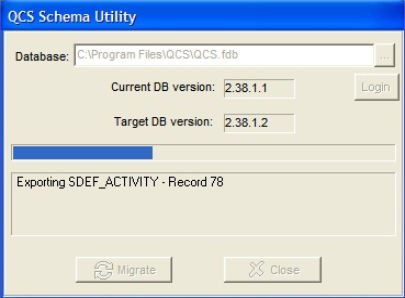
Figure 8:This figure shows the QCS Schema Utility. QCS Setup will start this application if the database needs to be upgraded from an older version to a newer version.
The top text box shows the path and name of the database that is being upgraded. The two text boxes below that one shows the current version of the database and the version it is being upgraded to. Below that is a progress bar and below the progress bar is a large text box the displays information on the database as it is being converted. The conversion may take a number of minutes to complete depending upon the size of your database. Once the Schema Utility has completed its work or if there was no work for it to do the QCS Setup application will be done and QCS will have been installed. All that will be left for you to do is the click on the [Finish] button.
Once the QCS Schema Utility completes the conversion the QCS Setup application will create a shortcut on your desktop if you are running Windows XP. If you are running Windows Vista or 7 you will have to create your own shortcut. To do that you will click on the Window's [Start] button and just above the [Start] button you will see a text box where you can enter the name of the program you wish to search for. Enter "QCS" without the quotes and Windows will find the QCS shortcut. Right click and select the "Send To | Desktop (as shortcut)" menu option and Windows will create a shortcut for QCS on your desktop.